
FromTailor-made Travel
SubjectStill thinking about {{ event.product.title | default: "that journey" }}?
PreviewDates are still open on the route you looked at, plus three journeys our planners pair with it.
Brings back a visitor who looked at a trip: landscape hero, the itinerary they viewed, similar journeys and a planner call.
Route photography, a real itinerary, and a trip enquiry.
The 6 sections of this email from top to bottom, rendered with the sample store and recipient from the app gallery. Each one can be edited, moved or removed.
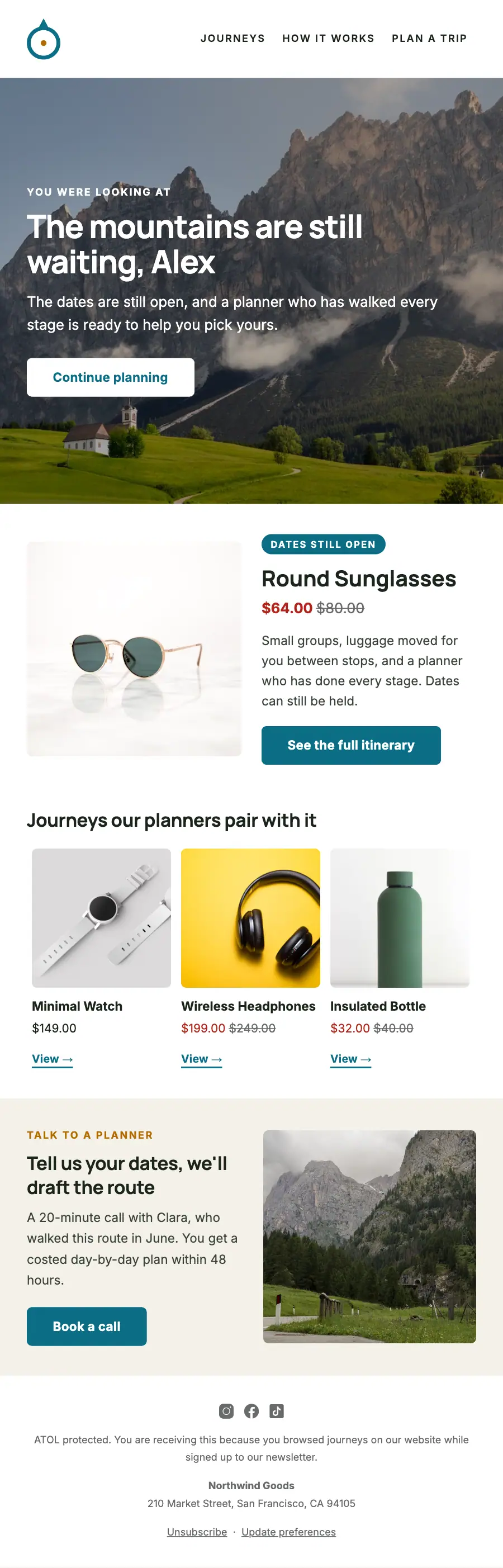
1Logo header
2A small label, a heading, text and a button
3Product block, filled from your store
4Product grid, filled from your store when it sends
5Two columns: a heading, text and a button beside a photo
6Footer with the unsubscribe link
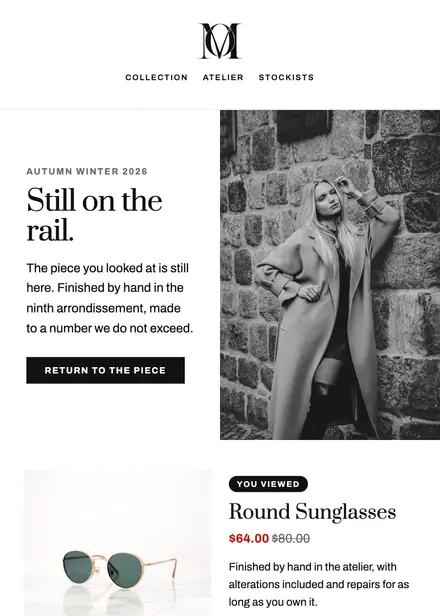
Fashion & apparel · Browse abandonment
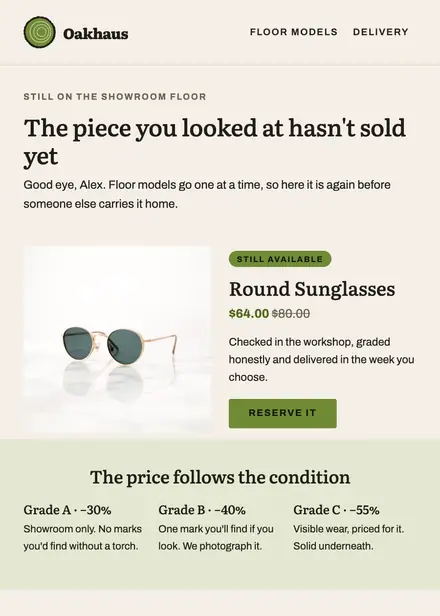
Home & living · Browse abandonment
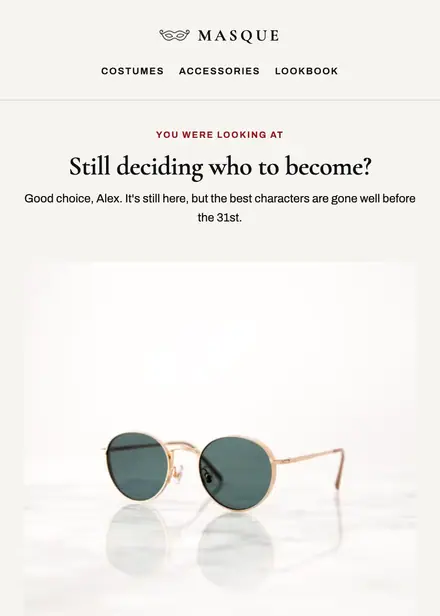
Fashion & apparel · Browse abandonment
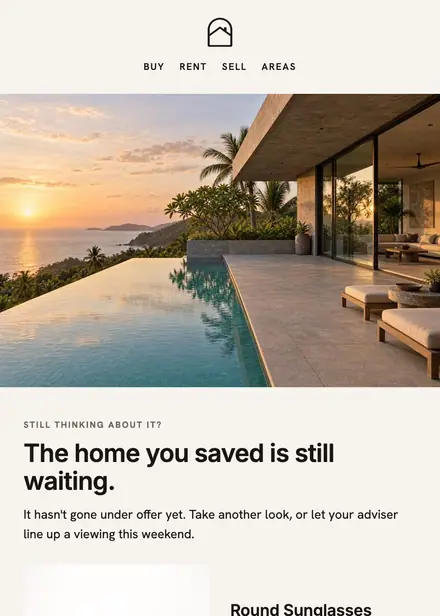
Real estate · Browse abandonment
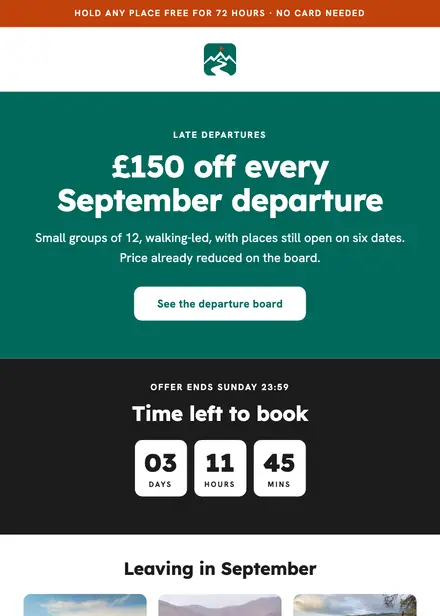
Travel & hospitality · Promotion
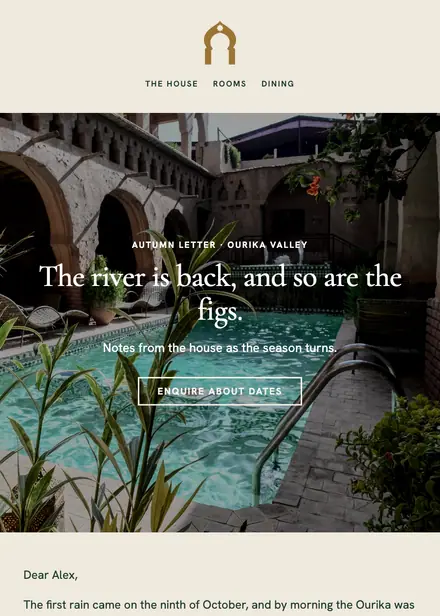
Travel & hospitality · Newsletter
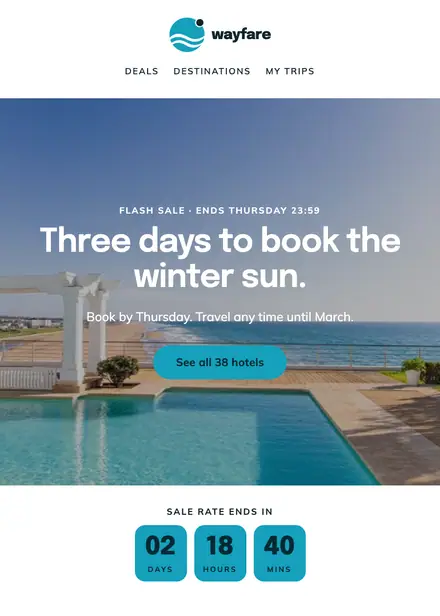
Travel & hospitality · Promotion
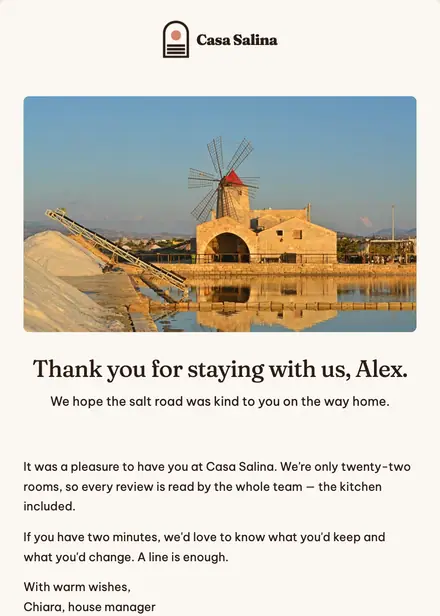
Travel & hospitality · Review request
Create a free Growthly account, open Templates, then the template gallery, and pick “Journey browse reminder”. It opens in the editor with every section ready to change.
Yes. Add your logo, two colours and two fonts to the brand kit and apply them, or edit any section and element on its own.
Yes. Add it to any flow as a Send email step, or send it as a one-off campaign.
Product blocks are filled from your connected store when the email goes out: best sellers, the newest arrivals, what the shopper viewed or what is in their cart.